How to Configure Office 365 to Support Zyston Office 365 Monitoring Services
Background
Zyston uses a proprietary scanning platform to periodically scan Office 365 environments for subscribers to the Office 365 Monitoring Services. Best practices for Office 365 stipulate that two-factor identification (2FA) be employed on Office 365. Because Microsoft’s 2FA implementation is specifically designed to prevent being impersonated by machine automation, an exclusion must be implemented to allow the scanner to authenticate so it may scan the environment.
This involves placing the IP address of the scanning platform on a list of hosts that are allowed to authenticate to the environment without 2FA. This does not mean that 2FA is disabled, it merely means that 2FA will not be required on authentication attempts from that one host.
Instructions
Note: Click on any image to embiggen.
Step 1: Sign into your Office 365 environment using an administrator account.**
Step 2: Navigate to the configuration page for Multi-Factor Authentication Service settings.**
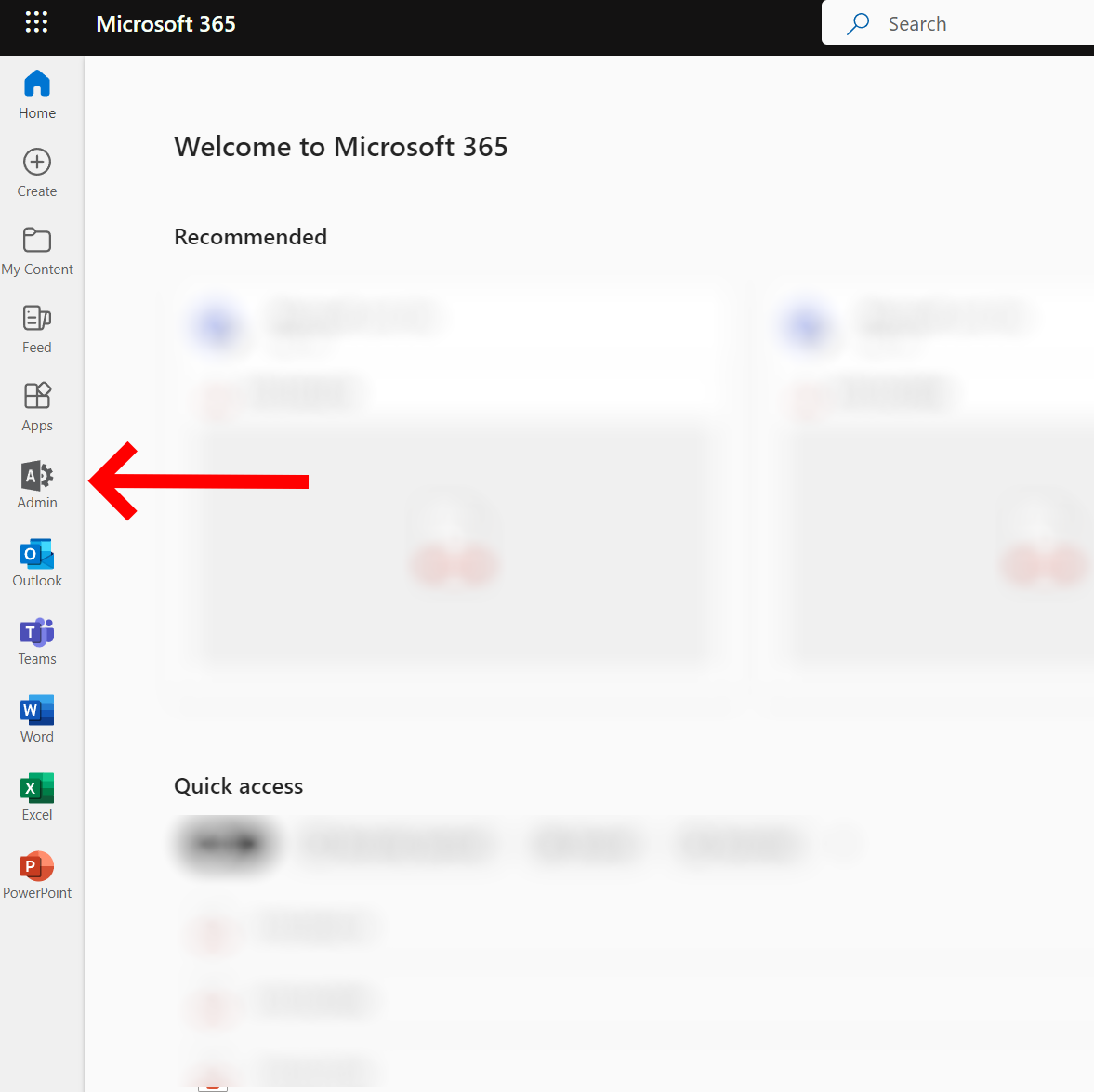
Navigate to the Admin applet.
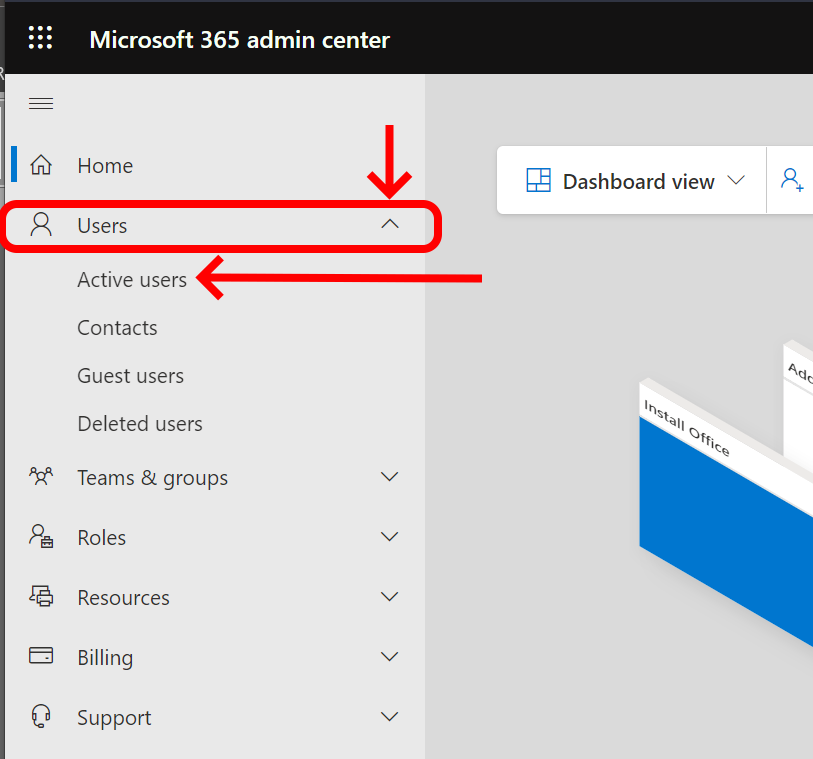
Navigate to Active Users.
(Note: It may be necessary to expand your menus in order to see this option.)
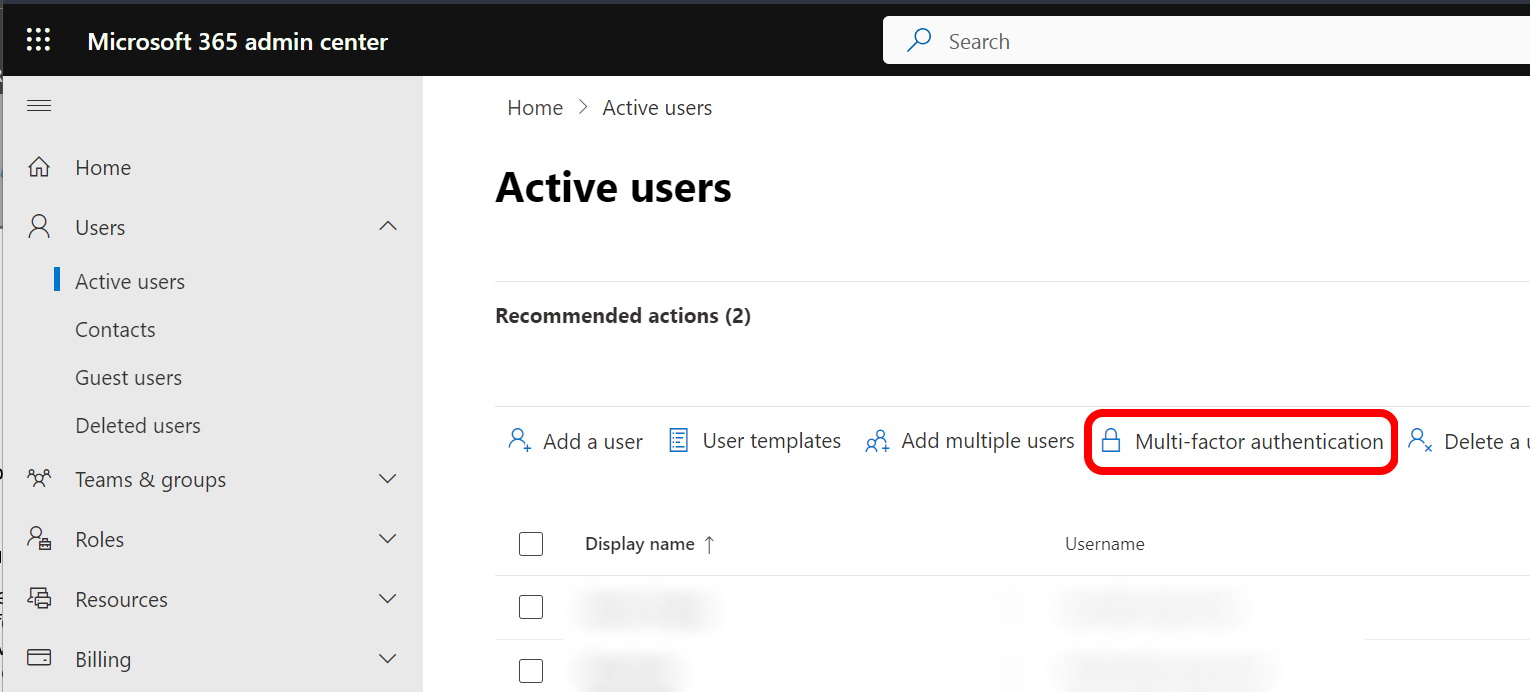
Navigate to Multi-Factor Settings.
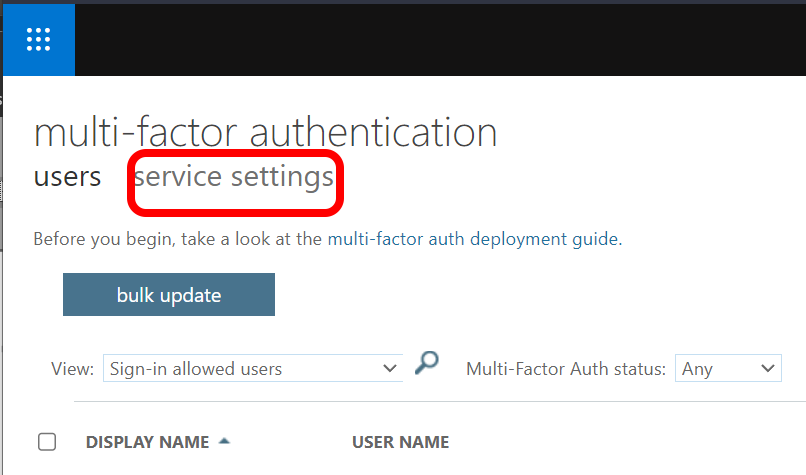
Open the Multi-Factor Authentication Service Configuration page.
Step 3: Add the Zyston scanning host IP address to the list of exclusions.
When the configuration page appears, you will see a large field under “Trusted IPs.” There may or may not already be items in this field. Do not disturb anything already in that list. Add a new line to the end of the list:
20.64.112.99/32
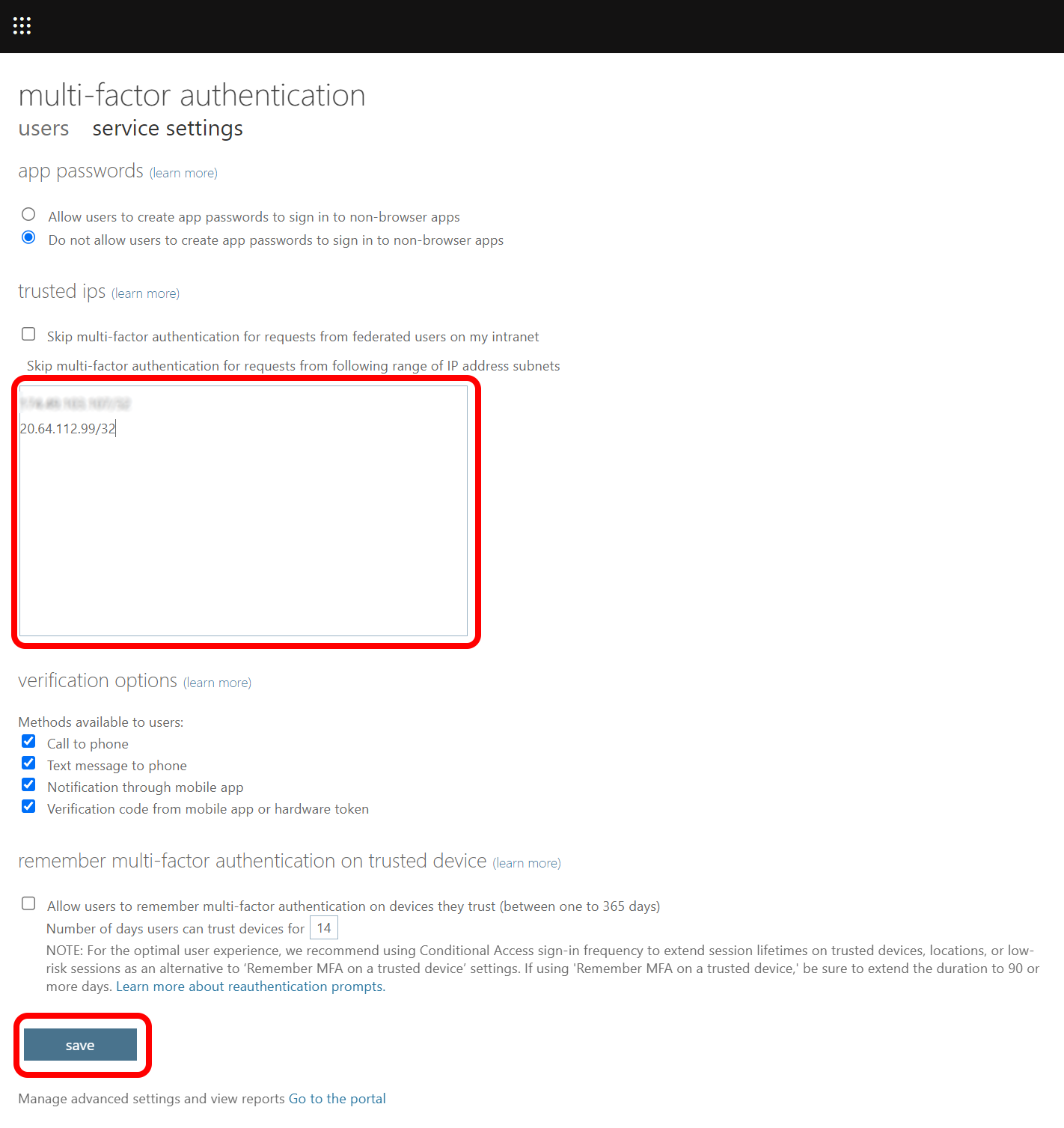
Save your changes Click "Save" at the bottom of the page. This completes the configuration.
Copyright 2022-2023, Zyston, LLC | 13355 Noel Road, Suite 510 | Dallas, TX 75240