SSO Configuration Example: Okta Workforce
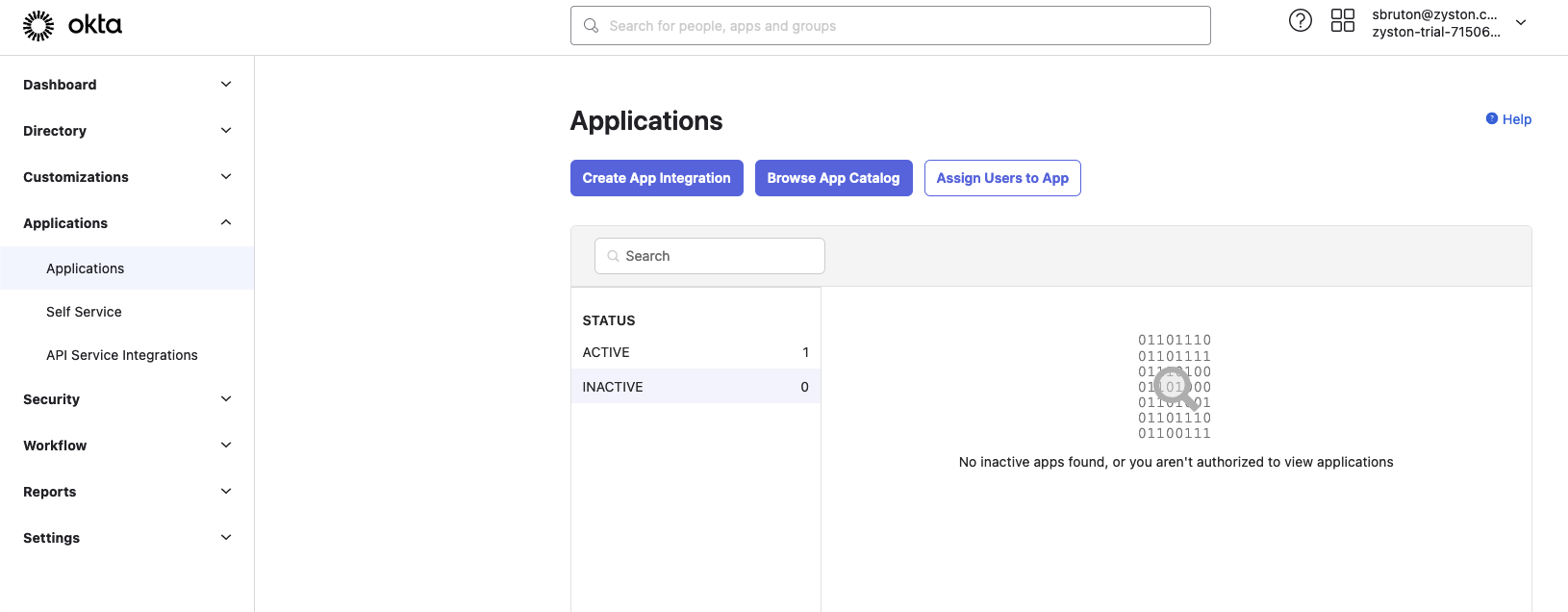
Step 1: Create a new Application in the Okta Admin Portal
-
Within the Okta Admin portal, select the
Applicationsmenu item from the left-hand menu -
Click the blue
Create App Integrationbutton
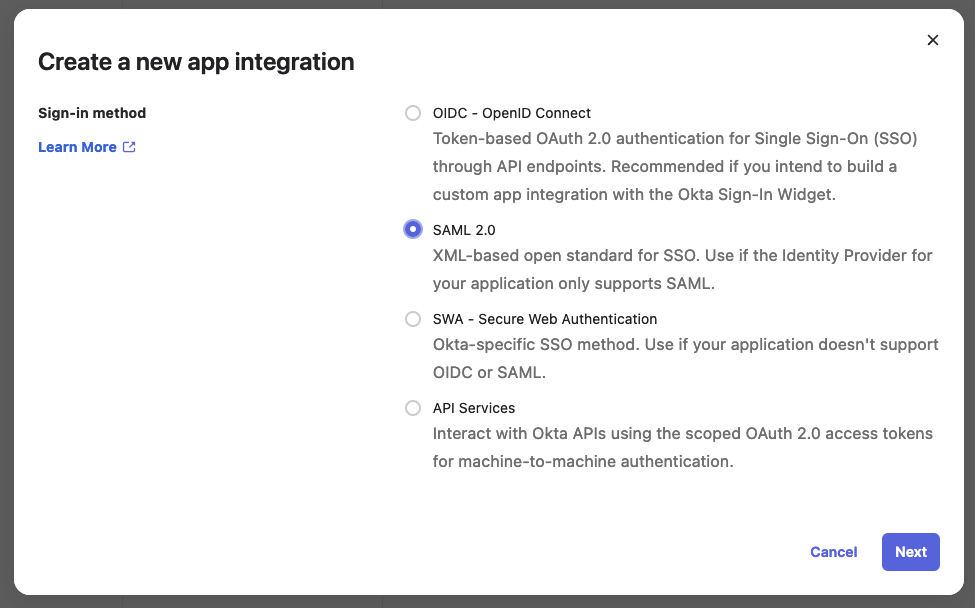
Step 2: Select the Sign-In Method
-
Select
SAML 2.0as the sign-in method -
Click
Next
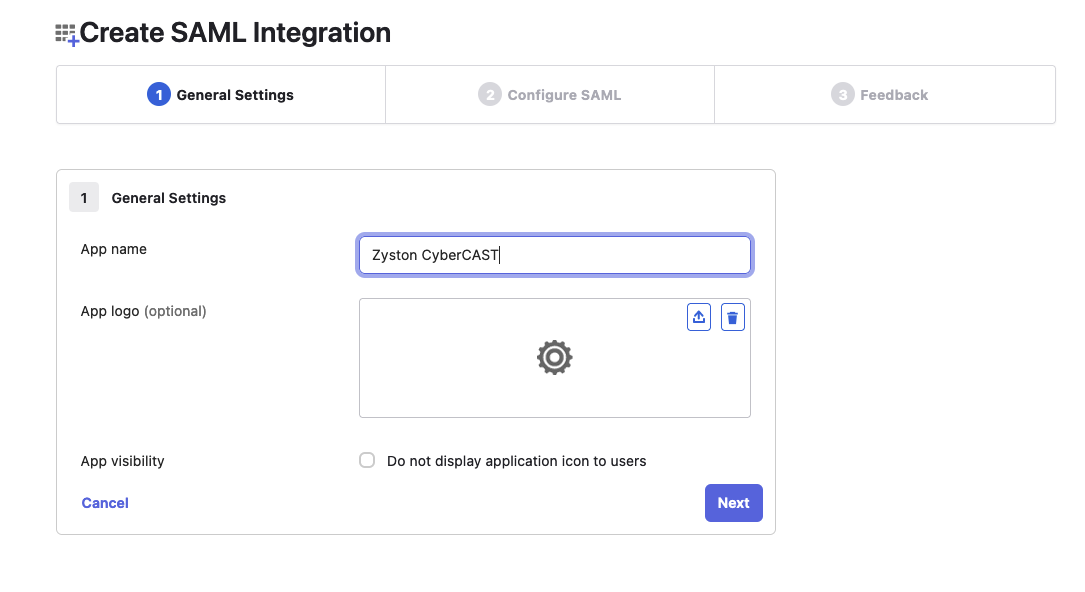
Step 3: Provide a Descriptive Name for the Application
-
Set the Application Name to
Zyston Cybercast -
Click
Next
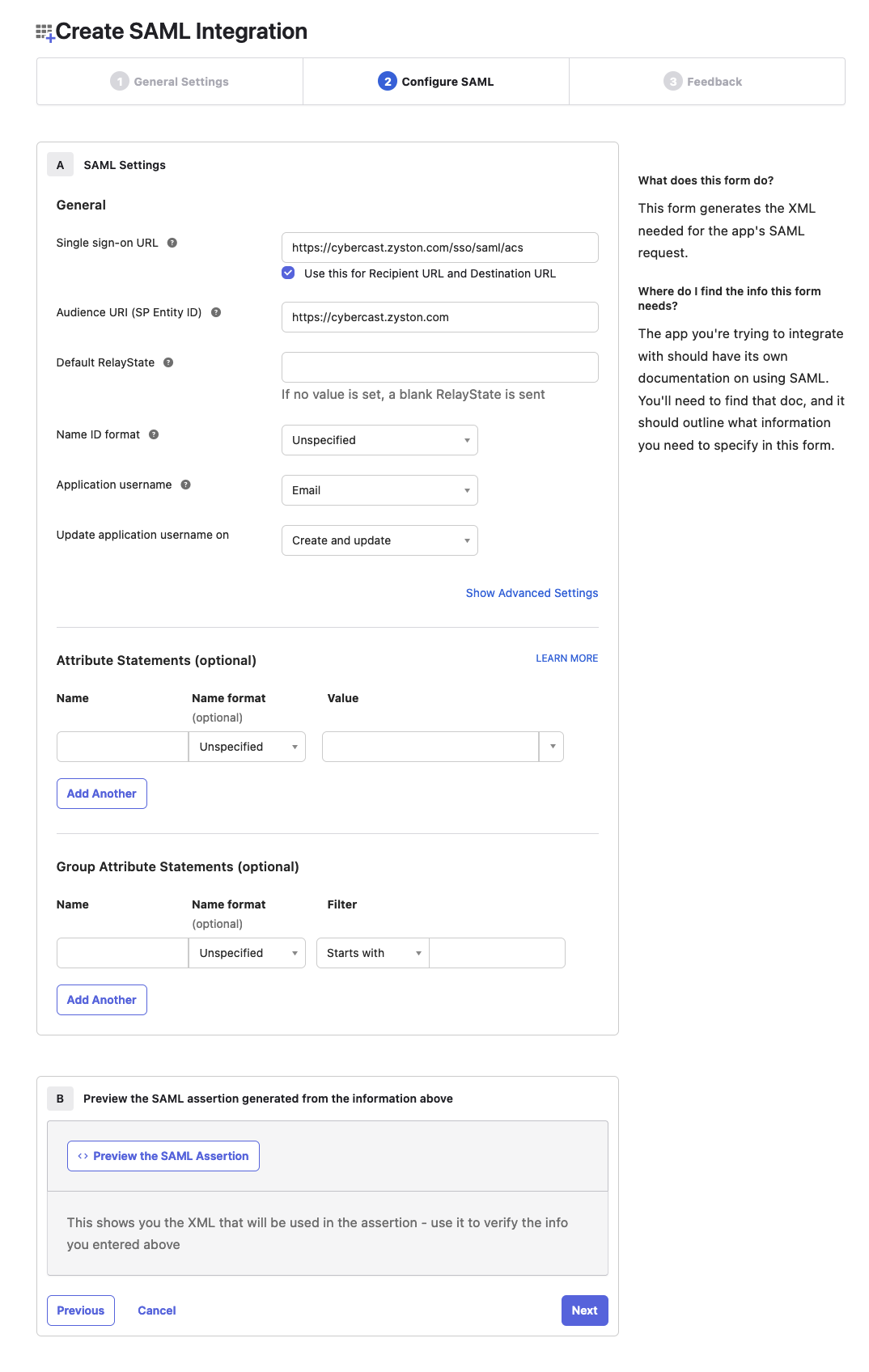
Step 4: Configure the Single Sign-On Settings
-
Set the Single Sign-On URL to
https://cybercast.zyston.com/sso/saml/acs -
Set the Audience URI to
https://cybercast.zyston.com -
Set the Application Username to
Email -
Click
Next
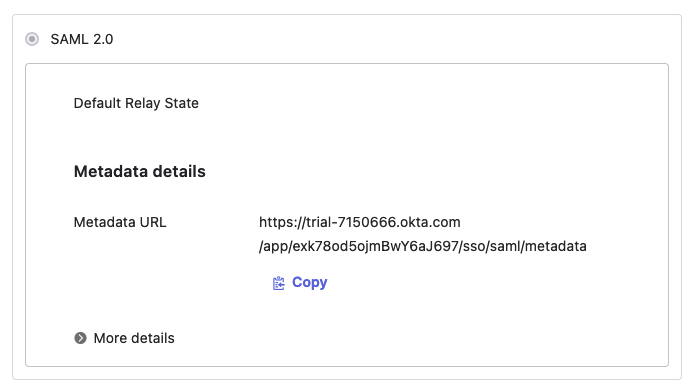
Step 5: Capture the SAML Metadata URL
- Copy the Metadata URL provided by Okta
Step 6: Enter the Metadata URL in the Zyston CyberCAST Portal
- Navigate to Settings
-
Click
Configure SSO - Enter the metadata URL copied in the previous step
-
Click
Continue